


How to Export and Print WhatsApp messages - iPhone and Android
No ratings yet.
Last year over 3 Billion users sent and received WhatsApp messages worldwide ever month!
If you are one of these users and you regularly send messages via WhatsApp, then there might come a time when you have a need to save and print your WhatsApp messages as a PDF file on your computer.
Today's instructions will walk any iPhone or Android user through how to export and print their WhatsApp messages to PDF using the popular third-party program Decipher Chat.
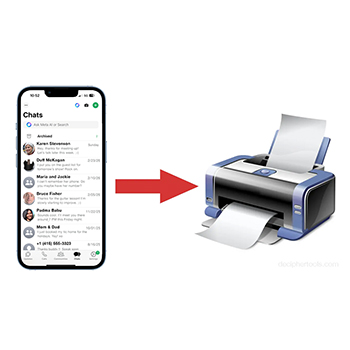
Reasons to save and print WhatsApp messages
There are a myriad of reasons why WhatsApp users often have a need to export and print their WhatsApp messages and conversations. Some of these include:
-
Capturing WhatsApp messages for business documentation.
-
Saving WhatsApp chats for court, trial, or legal disputes.
-
Exporting messages from WhatsApp to save chats with a family member or loved ones.
-
Parents that need to retain and print WhatsApp messages of their teens or kids.
-
Having a secondary copy of WhatsApp chats saved to computer before switching phones or in case of a lost or stolen mobile device.
Steps to print WhatsApp messages - iPhone
Here are the specific steps to follow so you can print out WhatsApp chats on iPhone:
-
Open Decipher Chat on your computer.
-
Plug your iPhone into your PC or Mac and select "Back Up" in Decipher Chat.
-
After the backup completes, select your iPhone.
-
Choose any WhatsApp contact that has messages you want to export and print out.
-
Select Export and pick the PDF option.
-
Open the file of your WhatsApp messages and choose “Print” to print out your WhatsApp chats to PDF on your computer.
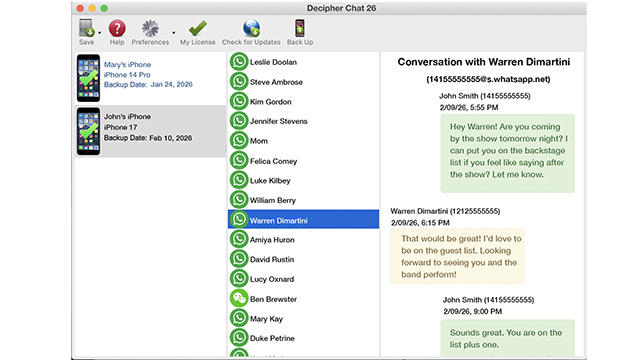
After backing up your iPhone, when you open Decipher Chat you'll see your device and all your WhatsApp contacts in the software. Then you can export any WhatsApp chats to PDF right away. Here is an example of how your WhatsApp messages look imported into Decipher Chat.
Below is an example of what a PDF of your WhatsApp chats and messages looks like when you export your WhatsApp conversations to computer with Decipher Chat:
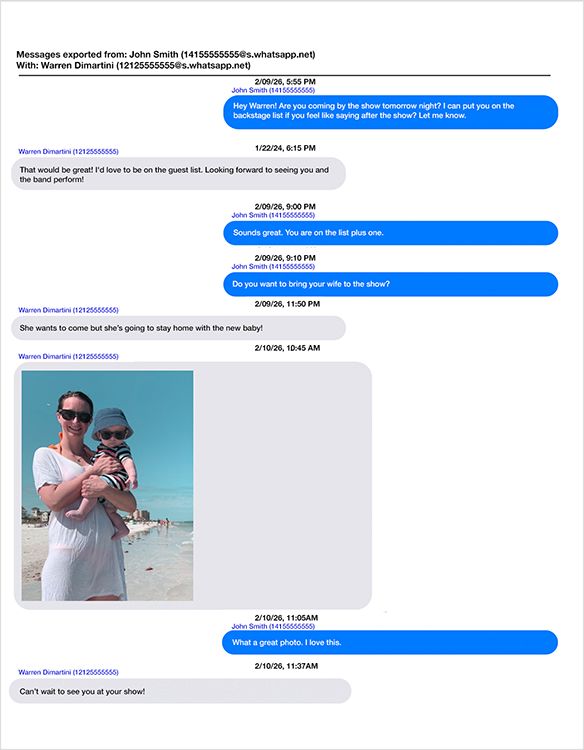
Pro Tip: Notice that the WhatsApp messages exported with Decipher Chat contain metadata such as the timestamp and contact information on every single WhatsApp chat. This type of documentation is helpful for record keeping, legal needs, court, and evidence.
"Great program, worked perfectly. Decipher Chat helped save important WhatsApp chats. And also, excellent support. I can only recommend it."
-Dima / January 27, 2026 ★ ★ ★ ★ ★
Source: Customer testimonial / review for Decipher Chat software to save and print WhatsApp messages..
Steps to print WhatsApp messages - Android
Here are the specific steps to print WhatsApp chats from Android phones:
-
Open a WhatsApp chat on your Android phone.
-
Choose "More Options" > "More" > "Export chat."
-
Select "Include Media."
-
Email or save the zip file of your WhatsApp data to your Windows or Mac computer.
-
Open Decipher Chat on your computer and select Preferences.
-
Choose "Custom Backup Location" and pick "Add WhatsApp Export Zip Files."
-
Select the WhatsApp zip file that you want to import into Decipher Chat.
-
Click on the WhatsApp contact in Decipher Chat and choose "Save" to export your WhatsApp chats as a PDF to your computer.
-
Open the exported PDF and select "Print" to print out the WhatsApp messages.
Source: Export WhatsApp messages to your computer.
Source: Decipher Chat import WhatsApp data preference.
After exporting the zip file of your WhatsApp data from your Android phone to your computer, when you open Decipher Chat and select "Preferences" in the program you'll see the option to import the zip file of your WhatsApp data.
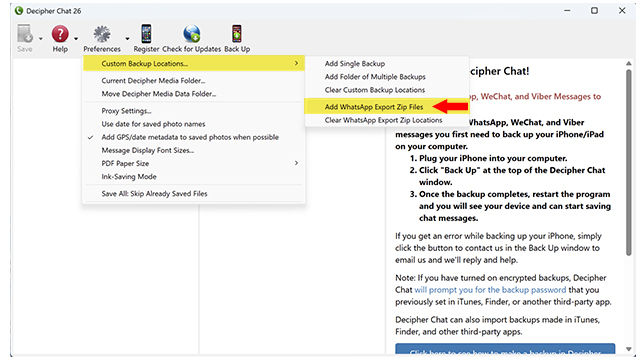
Once you have imported your WhatsApp zip file into Decipher Chat, you will then see your WhatsApp data in the program and you can choose the WhatsApp contact and export and print your WhatsApp messages to your Windows PC or Mac.
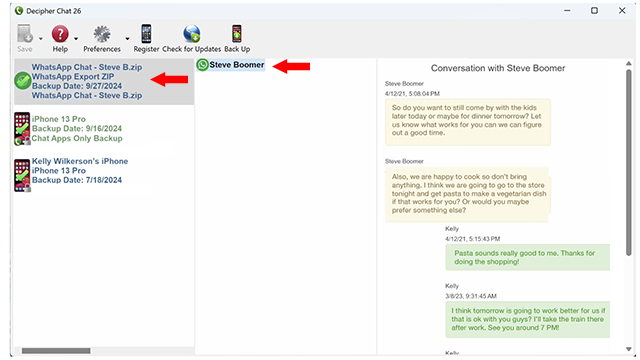
Pro tip: Exporting a zip file of your WhatsApp data directly from the WhatsApp app on your mobile phone can be done by both Android and iPhone users.
Video Instructions - Exporting WhatsApp data from Android or iPhone with Decipher Chat
If you are exporting your WhatsApp data directly on your phone and your goal is to import the zip file of your WhatsApp chats into Decipher Chat, here is a helpful tutorial video that walks you through the process outlined above so you can save WhatsApp chats to PDF.