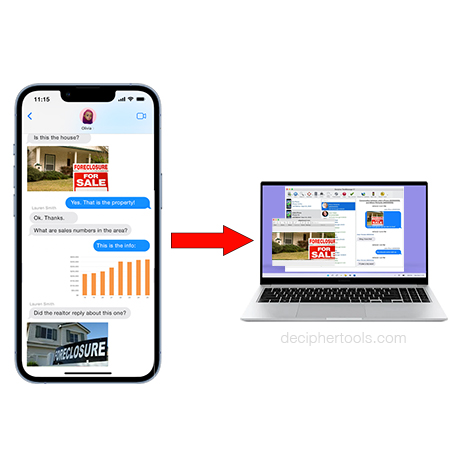
iPhone Support - Can I export photo and video attachments from text messages?
No ratings yet.
Question from iPhone user:
"I have a family member who recently passed away. For many years we exchanged a lot of photos and videos in our text messages. Is there any way for me to extract all the pictures and videos so I can keep the photo memories forever or have copies of the photos on my computer?"
-Ursula Butler, Miami, FL
Answer:
"We’re sorry to hear about you losing your family member. If you want to export and save just the photos and videos from your iPhone text messages, the third-party program Decipher TextMessage will let you conveniently transfer all the attachments from the Messages app on your iPhone to your computer. It’s a great way to preserve all your photos and memories with any family friend or loved one."
iPhone users in countries around the world regularly receive a large amount of photo and video attachments via text message on their iPhone.
Over time, the photo and video attachments in the iPhone Messages app can take up a lot of precious storage space on the device itself.
If your iPhone's storage is getting near to capacity, extracting attachments that are located in the Messages app is a great first step to free up important iPhone space.
Even if you currently have plenty of iPhone storage available, it's a smart idea to occasionally transfer photo and video attachments from the Messages app on iPhone to your computer. This will ensure that you have a secondary copy of the attachments safely backed up should anything ever happen to your iPhone or iPad.
Exporting photos and videos from the iPhone Messages app one at a time can be very timing consuming and tiring.
However, with the help of the third-party software program Decipher TextMessage, iPhone users can quickly bulk copy photos and videos from their text message conversations with any contact to their computer for safekeeping and archiving.
How to export photos and videos from text messages on iPhone
Here are the exact steps to extract and save all your photo and video attachments from iPhone text messages to your computer:
-
Open Decipher TextMessage on your Windows PC or Mac computer.
-
Plug your iPhone into your computer and select “Back Up” in Decipher TextMessage.
-
Once the backups finishes, select your iPhone.
-
Pick a contact that has photo attachments that you want to save to your computer.
-
Choose Export and pick the “HTML Archive” option to save the photo and videos.
-
After you have saved the attachments, open the exported folder and you will have an "Attachments" folder containing all your photo and video attachments with that contact in high resolution format that you can keep forever.
Download Decipher Text Message
When you launch Decipher TextMessage on your computer and back up your iPhone, your iPhone will will appear in the left-hand column of the software. After selecting a contact, you’ll see all your text messages including any photo and video attachments in the program.
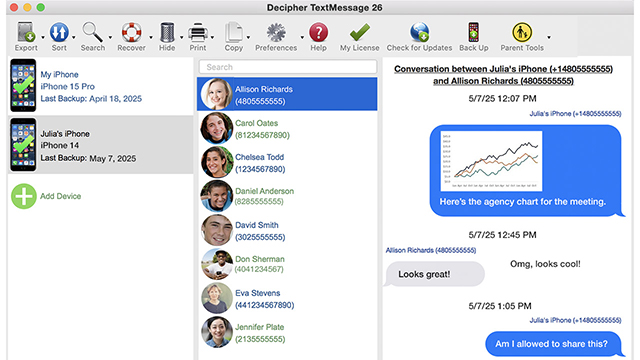
Most people that need to export text messages simply choose the helpful PDF export option which will embed any photos in the PDF that are part of that specific text message conversation.
In order to export a separate folder of just your photo and video attachments that are part of the text messages threads, you can select the HTML Archive export option in Decipher TextMessage.
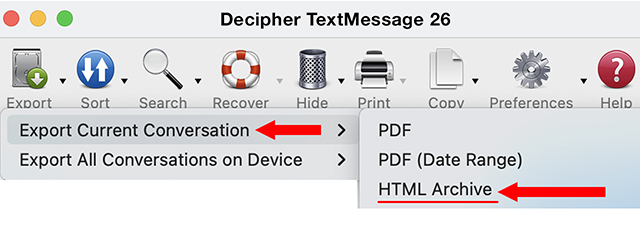
When you open the exported HTML Archive folder, you’ll see a separate stand-alone “Attachments” folder that contains all your photos and videos with that contact.
Windows - Photo and video attachments exported to computer from iPhone with Decipher TextMessage.
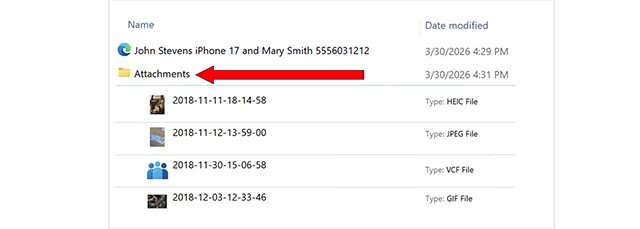
Mac - Photo and video attachments exported to computer from iPhone with Decipher TextMessage.
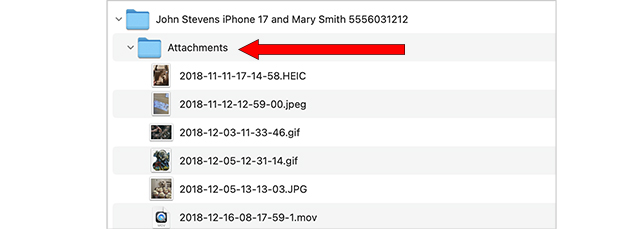
Note: The photos and video attachments exported from your iPhone to your computer with Decipher TextMessage are all high resolution files.
Pro Tip: Also contained in the exported folder is an HTML file. This HTML file contains all your text messages exchanged with that contact. You can open this HTML file locally in your web browser to view and print your text messages should that also be helpful!
"The Decipher TextMessage application to offload SMS text messages from iPhone to PC and then save as PDFs worked very well. Highly recommended if this is needed. This will work well in my upcoming court case."
-Michael / February 01, 2026 ★ ★ ★ ★ ★
Reasons for exporting text messages attachments (photos/videos) from iPhone.
Some of the many reasons why iPhone users sometimes have a need to extract and save attachments from text messages include the following:
-
Reducing iPhone storage - Copying photo and video attachments to one's computer helps free up important space on your iPhone or iPad.
-
Court or legal needs - Extracting text message photos and videos is a common request for legal needs or court cases. Lawyers, attorneys, and individuals regularly use Decipher TextMessage to save and print text messages from iPhone for court. Having the ability to also extract text message attachments as standalone files is incredibly useful and often required by lawyers for evidence purposes.
-
Photo search and organization - Exporting photo attachments from text messages gives iPhone users the ability to organize their photos on their computer or via any photo storage method of their choice like iCloud Photos. After extracting attachments and saving photos to your Windows PC or Mac computer, you also have the ability to search, locate, and access photos with ease instead of having to endlessly scroll back through older text messages via the Messages app on iPhone or iPad.
-
Mobile device loss, theft, or damage - Transferring photo and video attachments from the Messages app on iPhone to computer with Decipher TextMessage is a great way to ensure that important attachments are safely backed up and stored on your computer in the event you lose your iPhone or if your mobile device is stolen or broken.
-
Separate standalone copies of photos and videos - The ability to have a separate standalone copy of photos and video attachments is useful if you have have a need to sent the attachments to a friend, family member, or business colleague.
-
Photo attachment recovery if texts are deleted - Saving photos attachments from text messages to your computer ensures that, if you ever accidentally delete text messages off of your iPhone in the Messages app, that you'll have copies of the important photo or video attachments already stored on your computer and backed up.
Review Large Attachments - How to check the size of attachments stored in the iPhone Messages app
If you are curious to review and see which attachments are taking up the most storage space on your iPhone, here is how:
On your iPhone select:
Settings > General > iPhone Storage > Messages. You'll then see the option to Review Large Attachments.
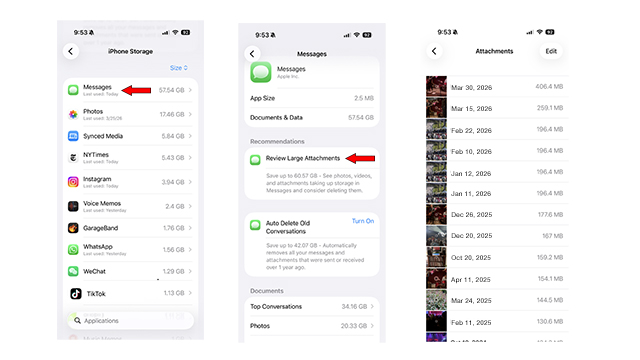
Do you need extra help exporting attachments from your iPhone text messages?
If you have a need to export iPhone text message attachments to your Windows PC or Mac computer, we hope today's Decipher Tools tips and instructions have been helpful.
If you need any further assistance, you can reach out to us via our Decipher Tools support page and we'll have one of our USA-based team in San Francisco or Phoenix reply back to assist.