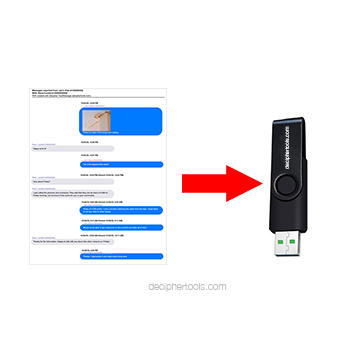
How to Save iPhone Text Messages to a USB Flash Drive
No ratings yet.
When iPhone users export and save text messages and iMessages to their computer with the trusted third-party program Decipher TextMessage, the software also gives users the ability to copy text messages from iPhone to a USB flash thumb drive.
Copying iPhone text messages to a USB thumb drive is useful for many reasons including:
-
Text Message File Sharing - Easily share iPhone text messages with friends, business colleagues, legal counsel, or family members.
-
Portability - Having a secondary portable copy of your important text message conversations lets you store backups of your text messages is different locations for safekeeping and security.
-
Free up space on iPhone - Many users like to copy and transfer text messages from iPhone to a USB drive so that they can deleted text messages from the Messages app on their device which frees up important iPhone space.
-
Print iPhone text messages from any location - Having a copy of iPhone text messages on a portable USB flash thumb drive enables you to print out the messages in PDF format on any computer or printer that has the ability to read USB thumb drives.
-
Organization - Exporting text messages to a USB drive helps users organize text conversations as PDF documents in different folders and directories.
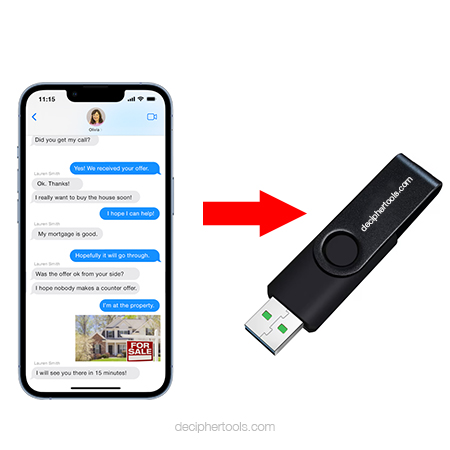
What do I need to save iPhone text messages to a USB flash thumb drive?
In order to export text messages from iPhone to a USB flash or thumb drive you need the following:
-
Windows or Mac computer
-
USB flash / thumb drive
-
Decipher TextMessage software
Decipher TextMessage software runs on any Windows or Mac computer and gives iPhone users the ability to save text messages (including photo and video attachments) in a variety of formats such as a PDF, HMTL, CSV, and TXT.
Text Message Data Privacy: When you run Decipher TextMessage all your text message data is stored privately on your PC or Mac and only you have access to the data.
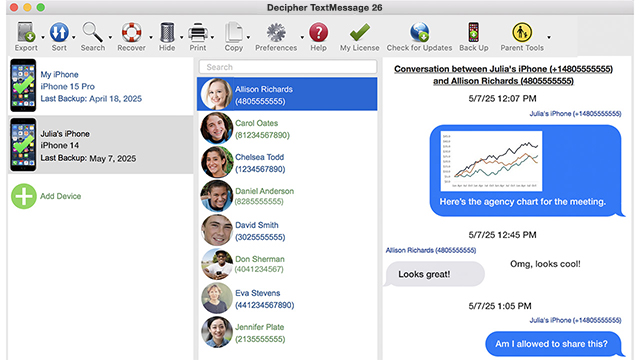
How to copy and save iPhone text messages to USB flash drive.
Follow these specific steps to save text messages from iPhone to a USB thumb flash drive:
-
Run Decipher TextMessage on your computer.
-
Plug your iPhone into your PC or Mac and select Back Up in the program.
-
When the the backup completes, select your iPhone.
-
Pick a contact that has text messages you want to save to a USB thumb drive.
-
Choose Export/PDF to save the iPhone text messages to computer.
-
Plug the USB thumb flash drive into your Windows or Mac computer and copy the PDF containing the iPhone text messages to the USB thumb drive.
Download Decipher Text Message
Can I copy iPhone text messages directly to a USB Flash thumb drive without having to first save the messages to my computer?
Yes! If you want to save iPhone text messages directly to a USB thumb drive without first exporting the messages to your computer, plug the USB drive into your Windows PC or Mac. When you select Export / PDF in Decipher TextMessage, instead of choosing a folder or directory on your computer, select your USB thumb drive and you can copy the PDF of your iPhone text messages directly to the USB drive.
What are the different formats for saving iPhone text messages to a USB thumb flash drive?
Decipher TextMessage enables anyone to export text messages from iPhone to a USB thumb drive in a variety of formats that include:
-
PDF - The PDF export option in Decipher TextMessage lets users save iPhone text messages, iMessages, and photo/video attachments in PDF format. This is a convenient and easy format to share text messages with anyone.
-
HTML - The HTML Archive export feature is a way for iPhone users to save text messages and photo attachments as a HMTL file. Users can then open the HTML file locally in their web browser on any computer. Once of the perks of the HTML Archive export choice offered by Decipher TextMessage is that this export format also saves a separate stand-alone folder of all the text message photo and video attachments with any contact.
-
CSV - The CSV (Comma-Separated Values) export option will format iPhone text messages in a CSV text file so that the text message data can be opened and imported into a spreadsheet or also into programs like Google Sheets, Excel, or Numbers on a Mac.
-
TXT - Saving text messages from iPhone using Decipher TextMessage's Text (TXT) export option is simple to copy text messages without any formatting to a USB drive. You can then open the text file using Notepad on Windows, Text Edit on Mac, Microsoft Word on both Windows and Mac, or any text software reader of your choice.
As a Systems Administrator at a fairly large company, I have reached out for support for a number of tools/services over the years. DecipherTools support is stellar and Decipher TextMessage software works great! But if you have a question or issue, these guys are incredibly quick and thorough helping. Unrivaled support!.
-David / February 19, 2025 ★ ★ ★ ★ ★
Source: Customer reviews and testimonials for Decipher TextMessage.
What size USB thumb drive do I need for copying iPhone text messages?
The capacity of a USB thumb drive needed for exporting text messages all depends on how much text message data you have stored on your iPhone and whether the text message conversations also include large amounts of photo and video attachments.
USB flash thumb drives usually come in a variety of sizes including 8GB, 16GB, 32GB, 64GB, 128GB, 256GB, 512GB, and 1TB. Any of these sizes from 16GB and larger should hopefully accommodate your needs when transferring text messages from iPhone to a USB thumb drive.
Do you need additional help?
Hopefully you have found that today's instructions about how to save and copy iPhone text messages to a USB flash drive have been useful.
If you need any assistance with transferring your texts to a thumb drive, simply reach out to us via our Decipher Tools support page and one of our USA-based team from our San Francisco or Phoenix office will be happy to reply and assist.