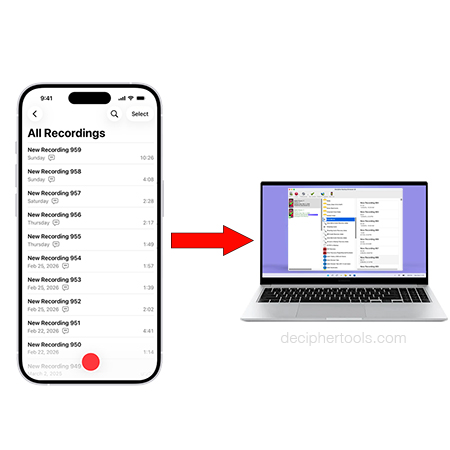
How to Transfer and Copy iPhone Voice Memos to Computer - Windows and Mac
No ratings yet.
Many people worldwide rely on Apple's Voice Memos app on their iPhone or iPad to capture and record important audio recordings.
Most users of the Voice Memos app will have a need at some point to copy voice memos from their iPhone to their computer. There is a lot of confusing information about how best to accomplish this task.
With the help of the popular third-party program Decipher Backup Browser, any iPhone user with a Windows or Mac computer can quickly bulk export all their iPhone voice memos to computer. This will ensure any iPhone user has a separate copy of all their voice memos stored on their PC or Mac for safekeeping.
Why do people use Apple's Voice Memos app?
A few of the reasons why people use the Voice Memos app on their iPhone or iPad include:
-
Recording business meetings for work documentation.
-
Musicians recording song ideas for composition, inspiration, and songwriting.
-
Lawyers recording voice memos or for depositions or legal hearings.
-
Parents recording their kids or family members.
-
Recording lectures or classroom instructions for educational purposes.
-
To record and capture ideas and thoughts for personal projects.
Are Apple Voice Memos saved to iCloud?
Yes, when you use iCloud your voice memos will be accessible across all your Apple devices. However, you have to make sure you have that setting turned on.
Here is how to ensure that your voice memos sync to iCloud:
On your iPhone or iPad go to Settings > Your Name > iCloud. Next, select the See All option and turn on Voice Memos.
Source: Apple's official site
Keep in mind that using voice memos with iCloud still doesn’t give you a quick and easy way to transfer all your voice memos to computer. This is where Decipher Backup Browser comes in handy.
How to transfer and copy all voice memos from iPhone to computer.
Here are the steps to follow to export and transfer iPhone voice memos to computer:
-
Launch the third-party app Decipher Backup Browser on your Windows or Mac computer.
-
Plug your iPhone into your computer, open Decipher Backup Browser, and select "Back Up.""
-
When the backup completes, select your iPhone in the program.
-
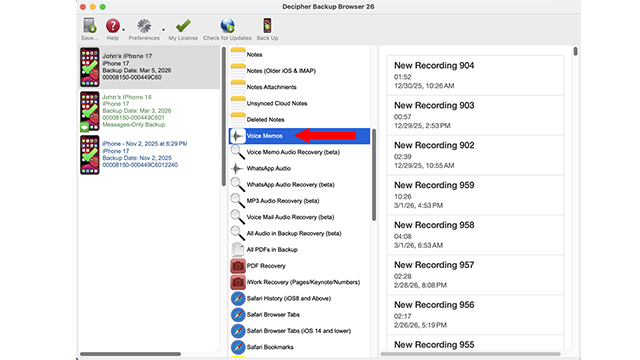
Choose “Voice Memos” in the middle column of Decipher Backup Browser.
-
Click “Save” to immediately transfer and copy all your voice memos to your computer.
Download Decipher Backup Browser
After you back up your iPhone with Decipher Backup Browser, when you open the app on your computer, you can select a device and choose the "Voice Memos" option in the middle column of the program. Here is an example:
You will then see your Voice Memo recordings in the far right column of Decipher Backup Browser and you can select "Save" to transfer all the voice memos to your Windows or Mac computer.
Now that you've successfully copied all your iPhone voice memos to your computer, you will have back up copies of the voice memos for safekeeping and also that you can share with anyone.
Also, in the event that your iPhone is lost, stolen, or broken, having copies of all your voice memos on your computer will ensure that you still have access to your important audio recordings.
What if I only need to save and export a few voice memos?
The following other methods are useful if you only have a few voice memos to save and you don't want to export a large amount of voice memos:
Mac users
If you are on a Mac computer and only need to transfer a few voice memos, you can send the iPhone voice memos to your Mac via Apple's AirDrop feature.
-
Open Voice Memos on your iPhone.
-
Select the voice memo you want to share or transfer.
-
Tap on the three dots (•••).
-
Select the "Share" option and choose AirDrop.
-
Select your Mac's computer when it appears.
-
On your Mac, click accept to download the iPhone voice memos to your computer.
Windows users
If you are on a Windows computer and you only need to transfer a few voice memos, you can email the voice memos to yourself.
-
Launch voice memos on your iPhone.
-
Select the recording you want to export.
-
Choose the three dots (•••).
-
Select the "Share" option.
-
Pick your email app to send the Voice Memo to yourself in an email.
-
Open the email on your Windows PC and download the iPhone voice memo to your computer!
Note: These two methods are best used when you only need to transfer just a few voice memos. If your goal is to transfer a large amount of voice memos to your computer, using the third-party program Decipher Backup Browser will save you time and effort.
Do you need additional help copying iPhone Voice Memos to computer?
If you need further guidance exporting voice memos from your iPhone to your Windows or Mac computer, simply email us via our Decipher Tools support page and someone from our San Francisco or Phoenix team will be happy to help. Good luck with exporting your voice memos!