


How to Fix the iPhone Disconnected Error During Backup or Restore in iTunes
Rated (4.8 of 5.0) by 33 reviewers.
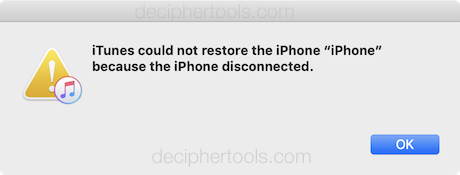
If you're getting an error in iTunes that your iPhone “disconnected” during a backup or restore, this essentially means that the backup or restore stopped when iTunes didn't expect it to. The stop could be from an error, or from problems the USB connection from the iPhone to the computer.
The solutions for dealing with this are very different depending on if you're backing up or restoring a backup, so jump down to the heading appropriate for your scenario.
These solutions are for all iOS devices: iPhone, iPad, or iPod Touch.
iTunes could not restore the iPhone because the iPhone Disconnected
iPhone Disconnected Error During a Restore
If you're getting the iPhone Disconnected error while trying to restore a backup to your device, we need to find a solution that will keep the data you're trying to restore intact. (This is my way of advising you to avoid any solutions that involve deleting the backup!)
How to fix iTunes could not restore the iPhone because the iPhone disconnected:
-
Remove any USB hubs in the connection between your computer and your iPhone. These can potentially cause USB errors that make the restore process fail. Update 2/4/2019: If you're using a newer MacBook that only uses USB-C, and you're connecting your iPhone to your MacBook using a USB-C hub, we recommend either connecting your iPhone directly to the MacBook using a USB-C lightning cable or copying the backup to another computer with a regular USB port. (Feel free to contact us if you need help copying the backup.)
-
Connect the iPhone to a different USB port on your computer. If you have multiple USB ports on different sides of the computer (front and back or left and right side) switch to an entirely different side/set of USB ports. Also, if you have some USB 3 and some USB 2 ports on your computer, try using the USB 2 port.
-
Reboot the computer you're doing the restore with. This will fix any potential USB connection errors.
-
Reboot the iPhone you're restoring, by pressing the top or side (lock) button until a “slide to power off” slider appears. Slide to power off, wait a few moments, and then power back on. If the iPhone is not freshly setup, you can also try doing a
Reset Network Settingsin the Settings app > General > Reset > Reset Network Settings. -
Assuming none of these solutions worked, there may be an actual error in the backup you're trying to restore. You can download our free trial of Decipher Backup Repair to diagnose the errors in the backup. Register Decipher Backup Repair to fix the errors so you can restore the backup in iTunes.
iTunes could not back up the iPhone because the iPhone disconnected.
iPhone Disconnected Error During a Backup
If you're getting the iPhone Disconnected error while trying to backup your device, we can hopefully solve the problem easily, since we don't need to worry about keeping the old existing backup intact.
How to fix iTunes could not back up the iPhone because the iPhone disconnected:
-
Remove any USB hubs in the connection between your computer and your iPhone. These can potentially cause USB errors that make the restore process fail. This is also a good time to try switching USB ports on the computer and USB cables if you have a spare.
-
Reboot the computer you're doing the restore with. This will fix any potential USB connection errors.
-
Turn off
Background App Refreshin the Settings app > General > Background App Refresh. (If you are using iOS 8 or lower, then put the iPhone into Airplane Mode.) In our experience with customers, we've found that too much background app activity (incoming messages, etc) can cause problems that result in the “iPhone Disconnected” message. (Don't forget to turn back on Background App Refresh after the backup is done!) -
Addition 1/10/17: I've seen a couple of backups where we had to put the iPhone into
Low Power Modein the Settings app under Battery to get the background file changes to slow down enough to get the backup working. Addition 4/12/17 We recommend setting all three settings: Background App Refresh off, Airplane Mode on, and Low Power Mode on. For some people, all three options are needed to quiet the background operations enough to complete the backup. -
We likely need to remove (or move) the existing backup, so that we eliminate errors caused by reading or trying to update it. To move/remove your existing backup:
On a Mac your backups are in /Users/your username/Library/Application Support/MobileSync/Backup.
- (Open Finder, hold the Option key, and select “Library” from the Go menu to get to your user's Library folder.)
In Windows, the fastest way to get to your backup folders is:
-
(Windows 7 and below) Start > Run > type
%appdata%(with the percents) and press return. -
(Windows 8 and Windows 10) Search > type
%appdata%(with the percents) and press return. From Application Data, navigate to Apple Computer > MobileSync > Backup. -
Addition 5/22/18: (Windows 10 - Microsoft Store iTunes) Search > type
%userprofile%(with the percents) and press return. From there, navigate to Apple > MobileSync > Backup.
You can match your device identifier with the backup folder name by clicking on the Serial Number field in iTunes (which will switch it to your device identifier.)
Rename this folder to anything you like (like “old backup”) or delete it. Renaming the backup is sufficient to hide it from iTunes and force iTunes to make a new backup from scratch — this usually eliminates the problem.
-
Addition 7/31/17: We've had some people report that renaming the entire “Backup” folder (rather than the single backup inside) to something else (“OldBackup” is a great example) helps resolve the problem. If this works for you, I highly recommend running a hard drive scan/repair after you're up and running, since this could be an indication that there's some bad blocks on your hard drive. (I also advocate backing up any essential data on that drive before running a scan if you've noticed other weird behavior that could indicate a failing hard drive.)
-
If removing the previous backup didn't work, let's do it again in combination with another possible fix:
-
First, remove the unsuccessful backup from the previous step.
-
Remove the
lockdownfolderaccording to these instructions from AppleAddition 5/22/18: Apple took down their instructions for removing the lockdown folder, so if you get to this point, contact us for assistance. We can help with instructions, and I'd like to make sure this is still a useful fix to have in this article. :)
-
Addition 2/4/18: USB-C Lightning Cables
We've seen a couple USB-C hubs fail and cause a disconnection error while restoring a backup in iTunes. We're working on testing some USB-C lightning cables ourselves so we can make recommendations on cables that we know work well. So far, the only USB-C lightning cable we feel comfortable recommending is the USB-C lightning cable directly from Apple. (Beware, the cables we've seen on Amazon so far claiming to be Apple cables are counterfeits that don't work well.) We will update this list with other options as we discover ones that we confirm work well. If you have a USB-C lightning cable that you've used to backup and restore, please leave a comment letting us know so we can test it and add it to the list!