


Best Methods to Print Text Messages iPhone - Short threads and Long Threads
No ratings yet.
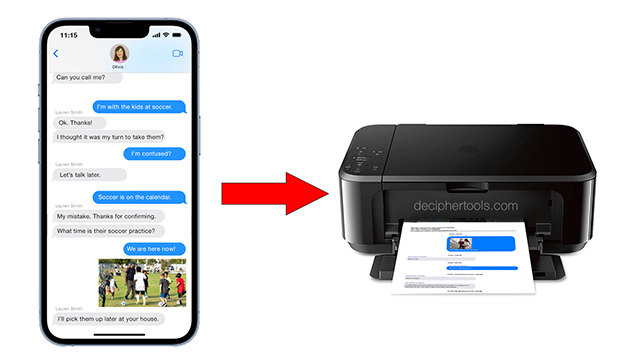
When any iPhone user is contemplating how best to print text messages, it can sometimes feel a bit daunting to try and figure out how to extract and save the text messages off the iPhone and get them printed out into a format that is easy to review and also printable.
There are many different reasons why people need to export and print text messages. A few of the common reasons for printing text messages include:
-
When a loved one passes away.
-
For court or legal needs.
-
For business records or documentation.
-
To save and archive family and personal texts message threads.
-
For divorce or separation.
-
To preserve text conversations with loved ones.
-
Ensuring text conversation are backed up in case a phone is lost or stolen.
Whatever your need is, here are two helpful methods that will enable you to get your iPhone text messages exported and printed out in a quick and efficient manner.
Choosing a specific method to export and print text messages from iPhone all depends on whether the individual has short text messages threads to print or if their need is to print out longer text message threads.
Method #1 - Screenshot method for Short Text Message Threads
What is a Short Text Message Thread?
Definition: A short text message thread is usually a quick text exchange that is not longer than five or ten lines. A series of short text threads would be considered between one and ten individual text messages.
If your goal is only to print a few short text messages, then you should consider whether using the screenshot method to capture your text messages will work for your needs.
The screenshot method is simple, quick and easy.
With the text message on your iPhone screen, you simply take the screenshot and then the screenshot of whatever text messages are on your iPhone screen will be saved to the camera roll on your iPhone.
You can then save the screenshot photo to your computer to print it out or send the screenshot directly to your printer from your iPhone.
Here is how to take iPhone screenshots:
-
On your iPhone, open the Messages app and select a contact with text messages you want to capture and print.
-
Press and then release the "side button" and also the "volume up" button. The screenshot will then be saved to your iPhone camera roll.
-
You can now open the camera roll on your iPhone, select the screenshot, and tap "Print" which to print out the screenshot of those short thread text messages.
-
If needed, you can repeat this step however many screenshots you need to print out.
Data Source for taking screenshots: Apple Support.
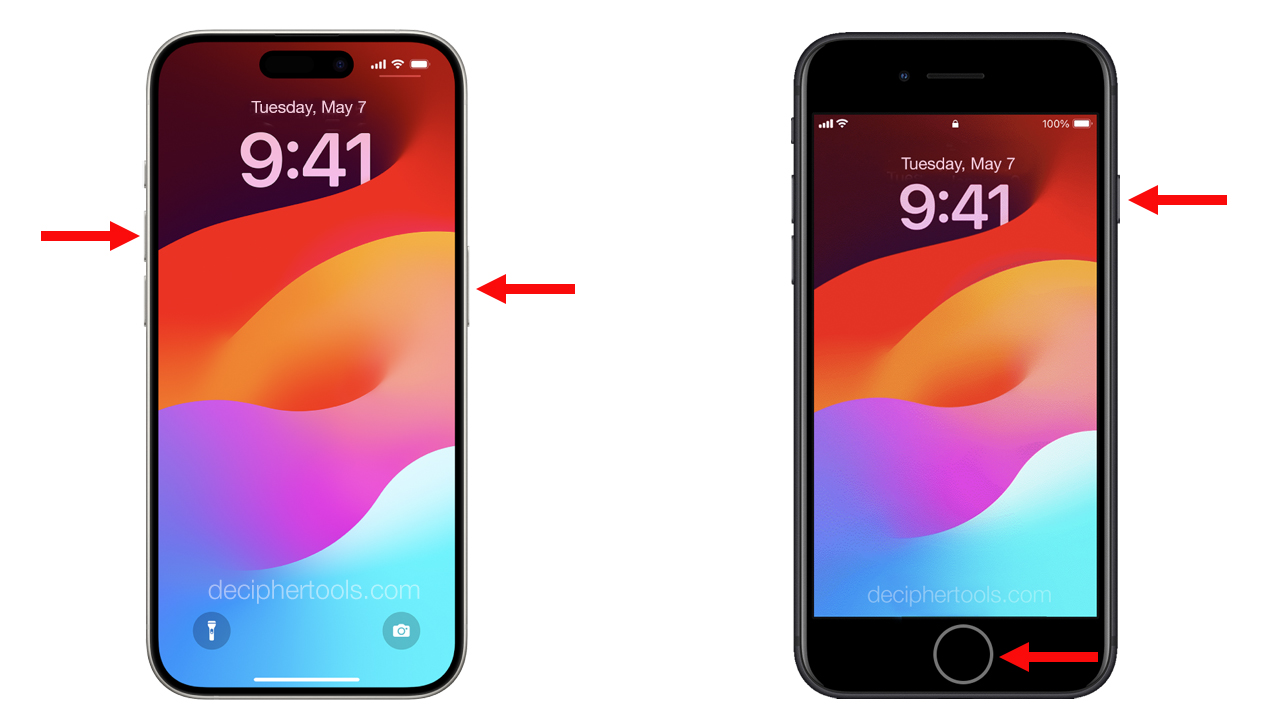
Printing short thread text messages re-cap:
For short text message threads, the screenshot method might possibly accomplish what you need and the other added bonus is it free.
However, it is important to consider that if you are taking screenshots of more than a few short thread messages, it can be quite laborious and time consuming to print out the screenshots and then try to organize the text messages in a format that is cohesive and thorough.
Method #2 - Third-party software for Long Text Message Threads
What is considered a longer text message thread?
Definition: A long thread text message is typically a text message conversation that consists of more than five or ten lines. The text conversation is extended and usually requires the user to scroll to read the entire message.
Also, any amount of text messages above ten separate messages would be considered longer message threads.
What's the solution to print long thread text messages?
If an iPhone user has longer threads of iPhone text messages to print out, the smart solution to print text messages is to use the third-party software Decipher TextMessage.
Decipher TextMessage software is made in the USA and the app is a trusted program that makes saving a printing iPhone text messages easy.
The program does the work for you so that you don’t have to gather, organize, and collate screenshots or stitch together long threads of text messages.
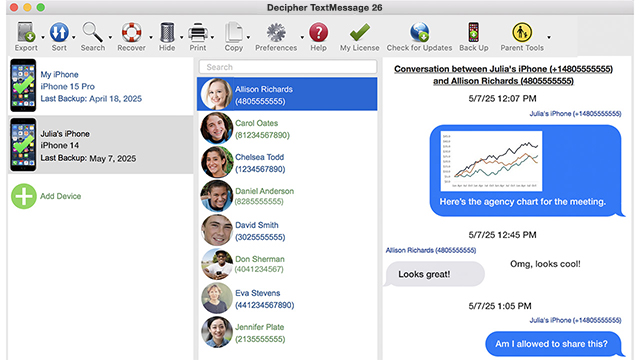
Follow these steps to print long text message threads from iPhone.
-
Launch Decipher TextMessage on your computer.
-
Plug your iPhone into your computer and choose "Back Up" / "Make Backup" in the program.
-
After the backup completes, select your iPhone by clicking on the device.
-
Pick any contact that has a long thread of text messages and choose the Export / PDF choice to save the text messages from iPhone to PC or Mac.
-
Open the PDF and choose "Print" to print out your long thread iPhone text messages.
Download Decipher Text Message
Here is an PDF example of text messages exported with Decipher TextMessage software.
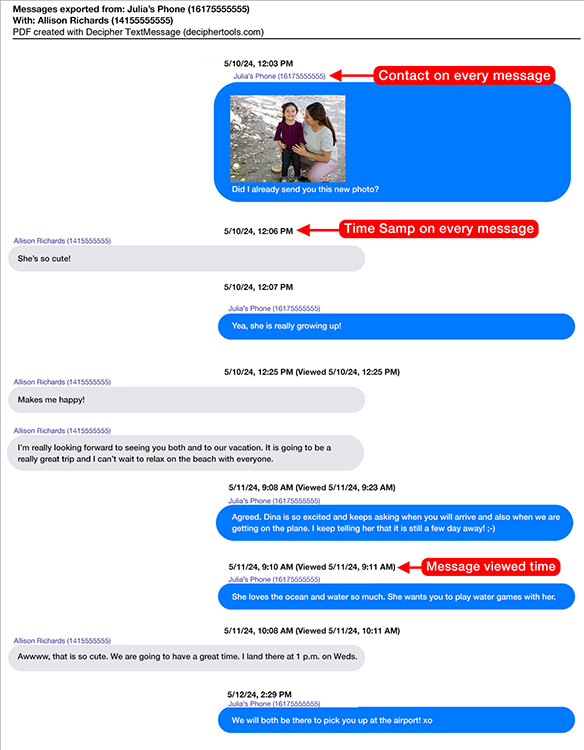
Decipher TextMessage exports iPhone text message long threads with accuracy and the program has a unique preference that gives any iPhone user the ability to display metadata like the timestamp and contact information on every single text message. This is paramount for documenting text messages to ensure the print outs are complete and thorough.
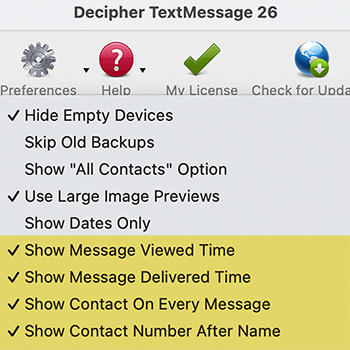
Also, if you are printing iPhone text messages for court, lawyers often require that the text messages include metadata for evidence and discovery purposes. Decipher TextMessage makes all of this possible.
Printing text messages from iPhone can be done in a variety of formats with Decipher TextMessage. Export options include:
-
PDF
-
PDF (Date Range)
-
HTML
-
HTML (Date Range)
-
CSV
-
CSV (Date Range)
-
Text
-
Text (Date Range)
Printing long thread text messages re-cap:
If you have long thread text messages to print out from your iPhone, the best resource is to use the third-party program Decipher TextMessage and let the software do the heavy lifting for you.
Decipher TextMessage will save any iPhone user both time and effort and the app will ensure that all your iPhone text messages and attachments are printed in an organized and accurate fashion.
David Lindsay
September 2026
★ ★ ★ ★ ★"What a discovery the Decipher TextMessage app is! I needed to print out and archive some text messages for legal purposes, from a group text in the Messages app on my iPhone 17 Pro. Merely trying to print out screenshots does not display the contact, the date, or the time for each message, which the Decipher TextMessage app excels at. It worked like a charm! After everything was loaded into the app, I was able to save text messages as pdf documents, give them names, and save them in a folder. And each message has the name, date, and time, which are required when using texts for legal purposes. Great app, great value, and great (very prompt) customer service. Highly recommended!"
Source: Product Testimonials.
Takeaway
Whether your specific goal is to print short thread text messages or long thread text messages, by choosing one of the above outlined methods, you should be able to successfully generate print outs of your text conversations.
Short Thread Text Messages
-
Very few text messages.
-
Screenshots are an easy option.
-
Printer ink requirements are quite minimal.
Long Thread Text Messages
-
Best to use Decipher TextMessage to export, organize, and print the text threads.
-
Metadata such as the timestamp and contact included on all message print outs.
-
Collating and organizing the texts is handled by Decipher TextMessage.
-
The software ensures accuracy and all one's messages data is private.
If you are attempting you save and print your iPhone text messages and have any questions about best practices to extract the text conversations from your iPhone or iPad to your Windows PC or Mac computer, feel free to contact us via our support page and one of our team from our USA-based offices will be happy to respond and help.
Good luck getting your text messages printed!