


Instructional How-to Guide to Print Text Messages - iPhone
No ratings yet.
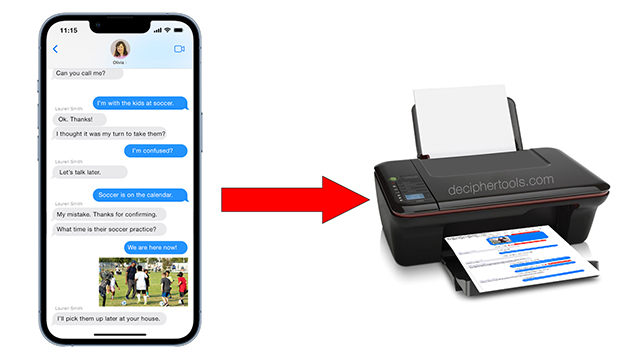
Quick Summary
- There are two reliable and trusted ways to transfer text messages and iMessages from your iPhone to computer so that you can print them out.
- You can either take screenshots or you can use a third-party software program on your computer to export and print out the text messages and attachments.
- When printing text messages, remember messages data usually contains sensitive data. Always be cautious with any app that transmits your text messages data to their servers or processes the messages with AI.
Help! I suddenly have a need to save and print iPhone text messages.
Let's dive in so you can decide which method is best for your specific text message printing needs!
When iPhone users need to print text messages and iMessages, it can be a bit overwhelming to figure out the best and most secure way to export and print the text messages on one’s computer.
According to Wikipedia, as of last year there were over 3 billion iPhone sold! This amount of iPhones in use daily around the world means that it is commonplace for any iPhone user to wake up one day and have questions about what is the best way to extract, save, and print out text messages from their iPhone to computer as a PDF file.
Whether you need to export and print iPhone text messages for personal reasons, court, legal needs, business, or for family keepsakes and memories, today's instructional guide will help you figure out which method is right for you and we will also share some of the things to be cautious about when exporting or printing your personal iPhone text message data.
Screenshots - When is this the best solution?
Taking a screenshot of your text messages is a quick and easy way to capture the messages that are on your iPhone screen. You then instantly have a a photo / screenshot in your iPhone camera roll of the messages present on the screen when you capture the image.
Pros of using the screenshot method to export and print text messages:
-
Free - Taking screenshots doesn't cost anything!
-
Only a few messages - If you only need to save and print a few messages, screenshots might be for you.
-
Quick and easy - You just take the screenshot and you've instantly captured any texts on your screen at that moment.
Cons of using the screenshot method to save and print text messages:
-
Not good for a lot of messages - If you have more than a few text messages you need to save, taking screenshots is not ideal.
-
Not way to format - It's difficult and time consuming to try and format all the screenshots into a cohesive document.
-
No timestamp on texts - With screenshots, there is no metadata like the time stamp or contact information displayed on your text message captures or print outs.
Takeaway: Screenshots are best used if you only have a couple messages that you need to save. If you have more than a few text messages that you want to export and print from iPhone or iPad, screenshots are not the most effective choice or use of your important time.
Third Party software - When is this the best solution?
Third-party software can be your new best friend if you need to print iPhone text messages.
This way you can export text messages on your computer with ease in different formats and print out the text conversations without having to collate or organize your messages.
One of the key factors when using a third-party software program to print text messages it to make sure you use a program that is vetted and has a proven track record. It is essential that you retain full control over all your text messages data privately on your computer. For this reason we recommend the software Decipher TextMessage.
Decipher TextMessage is made in the USA and has been championed by individuals, businesses, law firms, legal experts, and other industries to be the leading software to reliably save and print text messages from iPhone. You can read customer reviews here.
Pros of using the USA made third-party software Decipher TextMessage to export and print text messages:
-
Formatting- Decipher TextMessage enables you to export all your texts in chat bubble format.
-
Metadata - The software displays timestamp and contact information on every message.
-
Privacy - When you use Decipher TextMessage all your text message data is private and local on your PC or Mac.
-
Free trial - The program has a free trial that lets you save and print just a few messages. This way you can try out the program to make sure it is what you want before purchasing.
-
Robust export options - Decipher TextMessage lets users export and print text messages in a wide range of formats including PDF, HTML, CSV and TXT. Date range text message export option are also available.
-
No subscriptions - Decipher TextMessage has no subscriptions, recurring monthly charges, or hidden billing.
-
Text message only backup - The software has a custom back up option that will back up just your text messages and attachments and not your entire iPhone. iTunes is also no longer required for the backup.
What else should I consider when using Decipher TextMessage?
-
Cost - To save and print all your text messages, Decipher TextMessage costs $29.99 USD. There are no subscriptions, no recurring charges, and no hidden billing ever.
-
Windows or Mac computer required - Apple won't let iPhone users export messages directly on their device. You need a Windows PC or Mac computer to properly export and print your text messages.
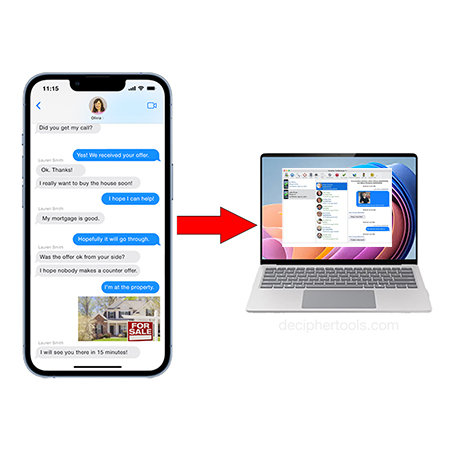
Screenshots - Specific details on how to take iPhone screenshots to print text messages
A screenshot is a digital capture of whatever is on your iPhone screen when you take the screenshot. After you capture the image, the screenshot is immediately placed into your iPhone Camera Roll.
iPhone screenshot instructions:
-
On your iPhone open the Messages app and pick a contact.
-
Press and release the "side button" and also the "volume up" button. This will instantly save the screenshot to your iPhone's camera roll.
-
Open the camera roll and select the screenshot. Tap "Print" which will let you print the screenshot of your messages out!
-
Repeat this step for the amount of text messages screenshots you need to print.
Source: Apple Support official instructions to take screenshots.
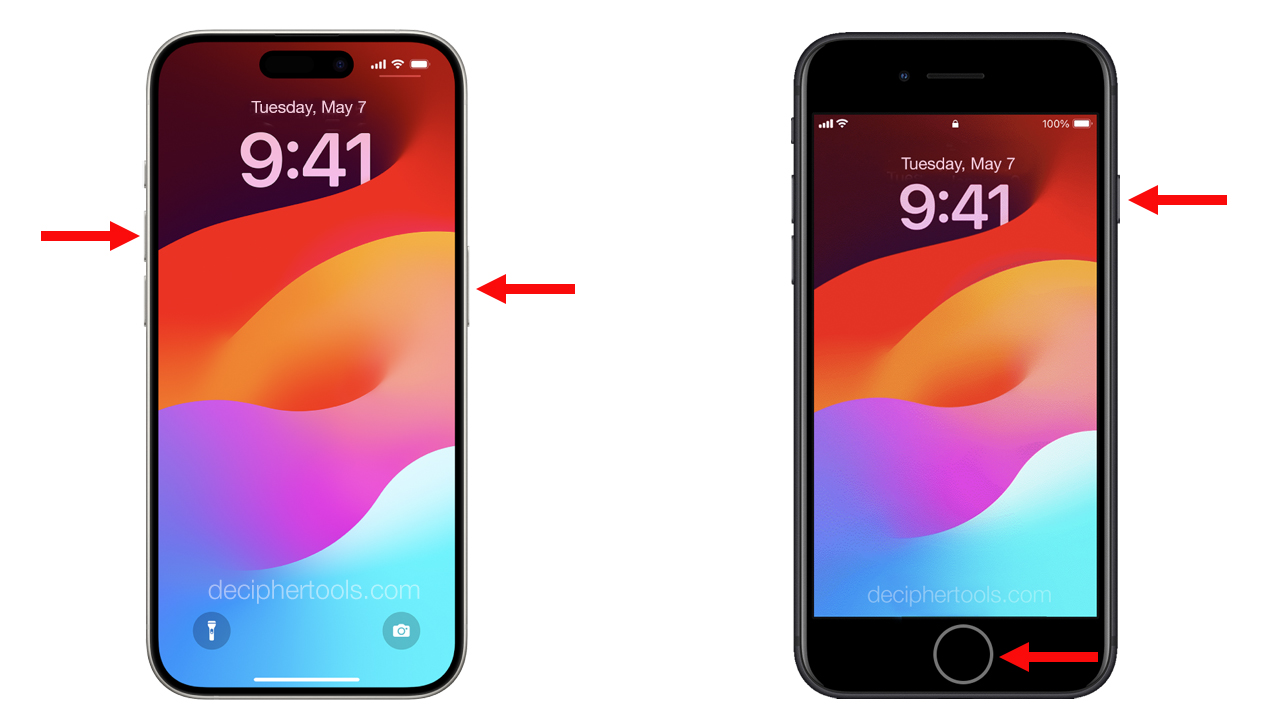
Third-Party Software - Specific details on how to print out text messages from iPhone.
Follow these specific steps to print iPhone text messages:
- Open Decipher TextMessage on your Windows PC or Mac computer.
- Connect your iPhone to your computer.
- Choose "Back Up."
- After your iPhone backup completes, select your device.
- Pick the contact that has text messages you need to print out.
- Choose Export PDF and save the text messages to your computer.
- Double-click to open the PDF on your computer and choose “Print” to print out your iPhone text messages.
Download Decipher Text Message
When you open Decipher TextMessage, your iPhone will appear in the program and you can select any contact with text messages or iMessages that you want to export and print.
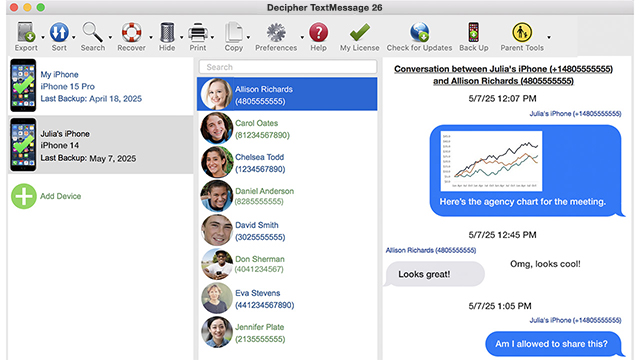
Below is what a PDF export of your iPhone text messages looks like when using the software Decipher TextMessage:
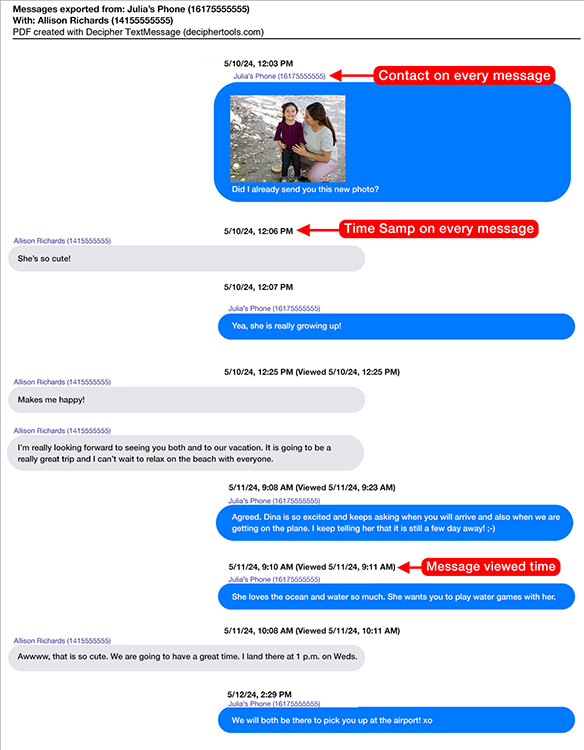
Metadata - The PDF example above shows the metadata timestamp and contact information on ever single text message. This is a preference and feature is unique to Decipher TextMessage software.
Generating text message print outs and documents with metadata is often required by businesses, lawyers, attorneys, and legal counsel in order to provide thorough documentation and records.
The metadata option in Decipher TextMessage is also a great way for anyone to be able to easily discern who sent and received each specific text message and what phone numbers are tied to each specific text.
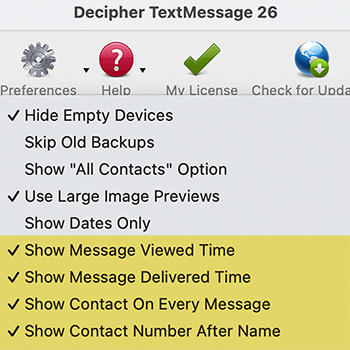
Here are a few of Decipher TextMessage's meta data settings and preferences:
Caution - Tips to make sure your iPhone text message data is private and safe
When exporting iPhone text messages, always be vigilant and use caution with any of the following:
-
Apps that require your iCloud password or Apple ID - Always be wary and cautious of any software program or app on your device that requires you to enter your iCloud password or Apple ID. We recommend never giving out this private information to any program or app that claims they will help you export your text message data.
-
Software that requires you to upload data or screenshots to their servers - Never let an app or third-party program upload your data to servers. Your text message data should always stay local and private on your computers/devices.
-
Apps that use AI to process your texting data - Just like being wary of an app that uploads your messages data to their server, you should also be wary of any app that uses AI to process your text-message data. Your messages likely contain personal data that you want to remain private and only accessible by you and trusted parties you've selected.
Always read product reviews and testimonials prior to purchasing software to print iPhone text messages
-
Before downloading a third-party program to transfer and print iPhone text messages, do a little homework and make sure the software you are looking into using is vetted and reputable.
-
Check to see where the software is developed and what country the developer and support team are based in so you can evaluate as to whether the software is made and supported by a trustworthy and reputable business.
-
Also, before purchasing any program to save and print text messages, it's a smart idea to look for feedback and reviews specifically about the software's customer support ahead of time, in case you need help using the software/app.
Customer testimonials for the USA made app Decipher TextMessage can be viewed at https://deciphertools.com/testimonial.html.
Terry S.
May, 2026
★ ★ ★ ★ ★"I learned of the Decipher TextMessage Tool from my daughter which helped her save/protect some very important text messages. I was so very amazed on how simple the tool was to use and how efficient it worked that I began to use it on my own. Since then I continue to appreciate the tool's capabilities and learn of the enhancements and improvements that continue to be implemented! Whenever I have had a question regarding functionality of Decipher TextMessage or it's behavior, the support team has been so amazing in providing excellent support and information quickly! Everyone that I have interacted with over the years has been great! A quality product, outstanding support. Cannot recommend this product and the Decipher Tools team enough!"
Final thoughts
Hopefully today's instructions have been useful as you decide what is the best method for your needs when it comes to exporting and printing out your iPhone text messages and iMessages to your computer.
It's a great feeling when you are able to save and print your iPhone text message with ease, accuracy, and also the peace of mind knowing that your text message data is private and secure.
If you have any questions or need help, feel free to drop us a support email via our contact page and one of our USA-based team will reply back with assistance. Happy text message printing!