


When I export iPhone text messages to a Windows or Mac computer, where exactly are the text messages saved?
No ratings yet.
When you use the third-party software Decipher TextMessage to export iPhone text messages to any Windows PC or Mac computer, the program gives users the ability to pick where on their computer they want to save their text messages.
When you select "Export" in Decipher TextMessage, you will first be prompted to choose the format for your text message export. In Decipher TextMessage, the robust export options include the following:
-
PDF
-
PDF (Date Range)
-
HTML Archive
-
HTML Archive (Date Range)
-
Text Only
-
Text Only (Date Range)
-
CSV
-
CSV (Date Range)
You will see these text message export options listed under the export menu choices in Decipher TextMessage.
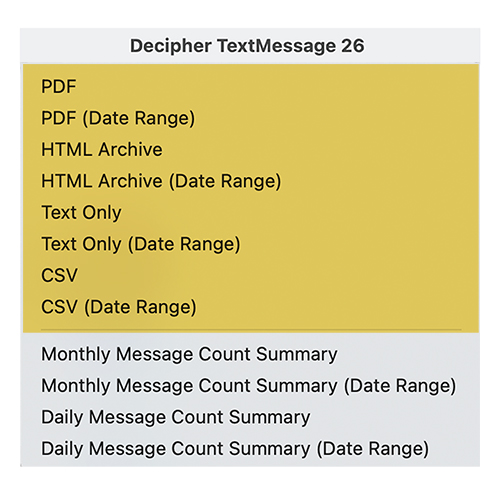
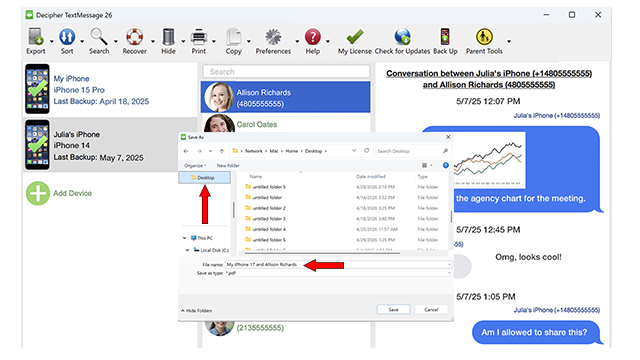
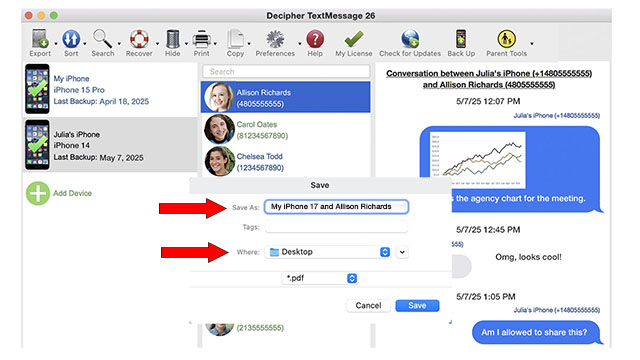
After selecting one of the export choices, you will then be prompted to pick a directory or folder on your computer and you can then save the text messages to whatever location you prefer.
Windows Computer - Here is what you'll see when being prompted to save your iPhone text messages on Windows:
Mac Computer - Here is what you'll see when being prompted to save your iPhone text messages on a Mac:
What is the best location on my computer to save my iPhone text messages?
You can export your iPhone text messages to any folder on your computer that you want. Saving text messages to either the Desktop or Documents folder are popular and convenient choices.
Save iPhone text messages to Desktop
Many users like to save text messages from their iPhone to the Desktop on their computer. This way it’s easy to find the exported PDF file on your Desktop and you don’t have to search or try and locate it elsewhere.
Save iPhone text messages to Documents folder
The Documents folder on any Windows or Mac computer is another familiar and convenient place for any user to save the PDF containing their text messages. After you export the text messages, simply navigate to the Documents folder and you can open and print the PDF of your iPhone text messages that was generated by Decipher TextMessage.
Can I save my iPhone text messages to an external hard drive or thumb drive?
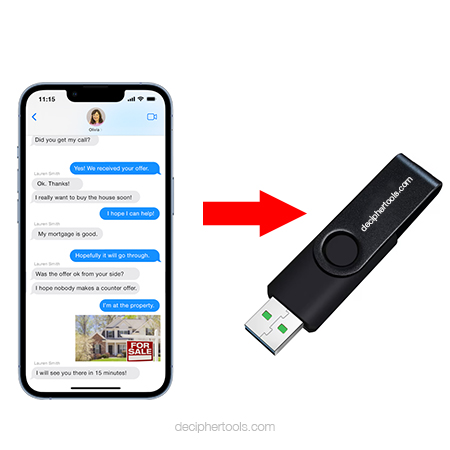
Yes, after you export and save your iPhone text messages as a PDF to your computer, you can then copy the PDF document to any thumb drive or external hard drive.
Also, if you have the external drive plugged into your computer, you can save the text messages directly to the external drive instead of first saving the file to your PC or Mac.
Which of the export options is the most popular for exporting iPhone text messages?
Most Decipher TextMessage users choose the PDF export option. The PDF option enables users to export, save, and print text messages including any photo attachments include in the text conversations.
Metadata Preference - All exports made with Decipher TextMessage software include metadata like the timestamp and contact information on every text message both sent and received. This is very helpful and often necessary for documentation and organizational purposes.
How many text messages can I save and is my text message data private?
When you activate a device with your Decipher TextMessage product license code, you can export all the text messages from that specific iPhone forever as many times as you need.
Text Message Data Privacy - When anyone uses Decipher TextMessage software to export and print text messages from iPhone, the user's data is completely private and local on their computer. Only the user has access to their data and none of it is stored on servers and no Apple ID is required to extract and exports the texts. The user is in complete ownership and control of their data.
"Decipher TextMessage is a truly amazing app if you have a need to store and organize text messages! If you want to go back to a particular date and revisit every conversation you had in the order those texts took place this program will do it! Every question I had was quickly answered by the support team. I highly recommend both the application and this company to anyone looking to save and organize their text messages."
-Sam H. / April 6, 2026 ★ ★ ★ ★ ★
Download Decipher Text Message
Do you need additional help with exporting iPhone text messages to a Windows PC or Mac?
If you need any help saving and printing your iPhone text messages or are having issues picking a convenient location on your computer or external hard drive for the saved document, you can email us via our Decipher Tools support page and someone from our USA-based team will reply and help.
When you use Decipher TextMessage for copying, exporting, or printing iPhone text messages, the software not only makes the process of extracting your text messages easy, but the program's intuitive user-interface also makes it simple to choose the exact folder or directory so you can store and save your text messages to wherever is most convenient on your personal computer.