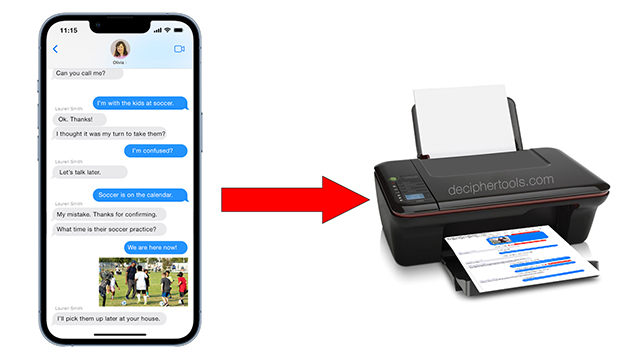
Is there an app to save, transfer, and print iPhone text messages?
No ratings yet.
Question:
"I need to extract text messages from my iPhone. Is there an app that will enable me to copy and save the texts from my iPhone to my computer so that I can print out the messages I need?"
- Britta Stevenson, Brooklyn, New York.
Solution:
"Yes, the app Decipher TextMessage is the go-to program for iPhone users that need to export text messages and print them out. The popular app is known for its ease of use, accuracy, data privacy, and the program used by iPhone users around the world."
Overview
-
Saving and printing iPhone text messages is easy with the app Decipher TextMessage.
-
After your text messages are imported into the program, Decipher TextMessage will let you choose any contact and you can immediately export the text messages with that individual to your computer and print them out.
-
Most users choose the PDF export option in the program which will generate a PDF file of their iPhone text messages, iMessages, and attachments with metadata like the timestamp and contact information on every message.
How does Decipher TextMessage display my iPhone text messages?
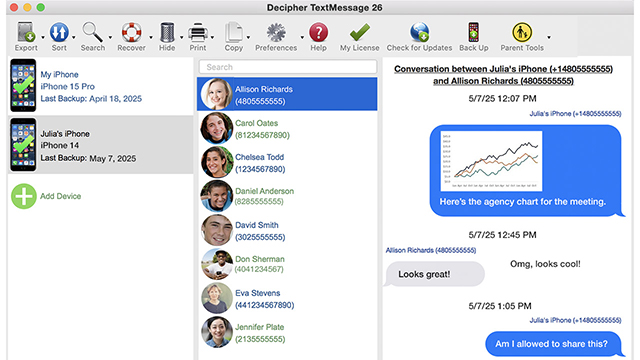
Below is an example of how the program looks when you run the app on your computer.
After selecting your iPhone and a choosing a contact, Decipher TextMessage will then display all the messages with that person including any photo or video attachments.
When I save iPhone text messages as a PDF, what does the exported file look like?
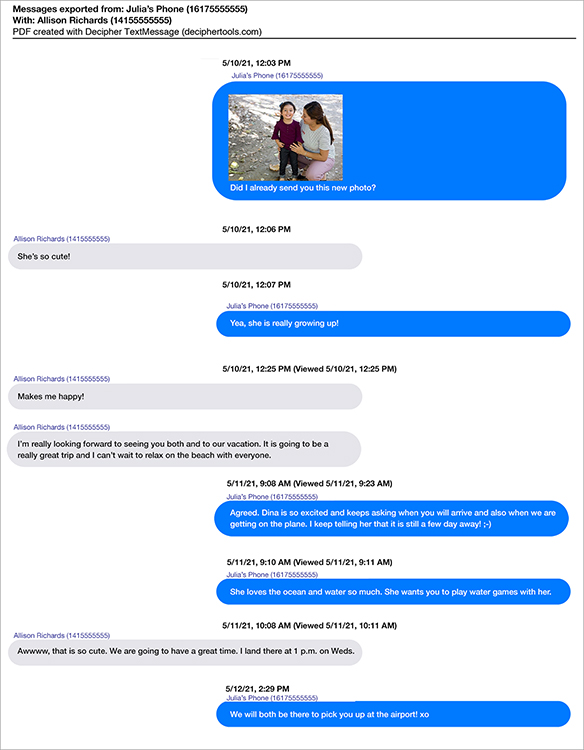
Below is an example PDF of iPhone text messages exported with Decipher TextMessage.
Notice that the timestamp and contact metadata information is displayed on all text messages. This is important for accuracy if the text message conversations are being printed for legal reasons, court, or business documentation.
What are the quick steps to save and print my iPhone text messages?
Follow these simple steps to save and print text messages from iPhone:
-
Connect your iPhone to your computer.
-
Open Decipher TextMessage and select “Back Up / Make Backup” in the app.
-
Choose “Export” and pick the “Current Conversation PDF" option.
-
Select to where on your Windows PC or Mac you want to save the text messages.
-
To print the iPhone text messages, open the exported file on your computer and select "Print."
Download Decipher Text Message
Video tutorial to save and print text messages from iPhone
Here is a helpful instructional video that will show any iPhone user how to copy text messages, iMessages, and attachments to one's computer.
When exporting text messages, does it matter whether I have a Windows or Mac computer?
Decipher TextMessage runs on any Windows or Mac computer. When you are on the download page on the official Decipher Tools website, your web browser will prompt you to download the program installer for either Windows or Mac depending on which type of computer you are using at that time.
What are the different export choices in the program? Can I export texts to PDF with Decipher TextMessage?
Decipher TextMessage gives iPhone users the ability to export text messages is different formats including PDF, HTML, CSV, and Text.
What if I only want to save just a few messages and not all my text messages?
There is a convenient PDF "Date Range" export choice in the program that gives iPhone users the option to narrow down any exports to just the specific times and date of the messages they need.
Do I need iTunes to back up my iPhone and export my text messages?
No, iTunes is not required. Decipher TextMessage has its own custom proprietary "Text Message Only" backup feature that enables users to only backup just their text messages and not their entire device. This process does not require iTunes.
Where is Decipher TextMessage made?
Decipher TextMessage software is made and developed in the USA.
Customer support and product questions can be submitted via the Decipher Tools software support page. Product reviews and customer testimonials can be read here.